> For the complete documentation index, see [llms.txt](https://help.fastwork.vn/fastwork-help-center/llms.txt). Markdown versions of documentation pages are available by appending `.md` to page URLs; this page is available as [Markdown](https://help.fastwork.vn/fastwork-help-center/huong-dan-s-dung-chi-tiet/fastwork-work/fastwork-request/thao-tac-nguoi-dung/huong-dan-theo-doi-quan-ly-cac-de-xuat.md).
# Hướng dẫn theo dõi, quản lý các đề xuất
## 1. Hướng dẫn cách theo dõi, quản lý đề xuất trên Web
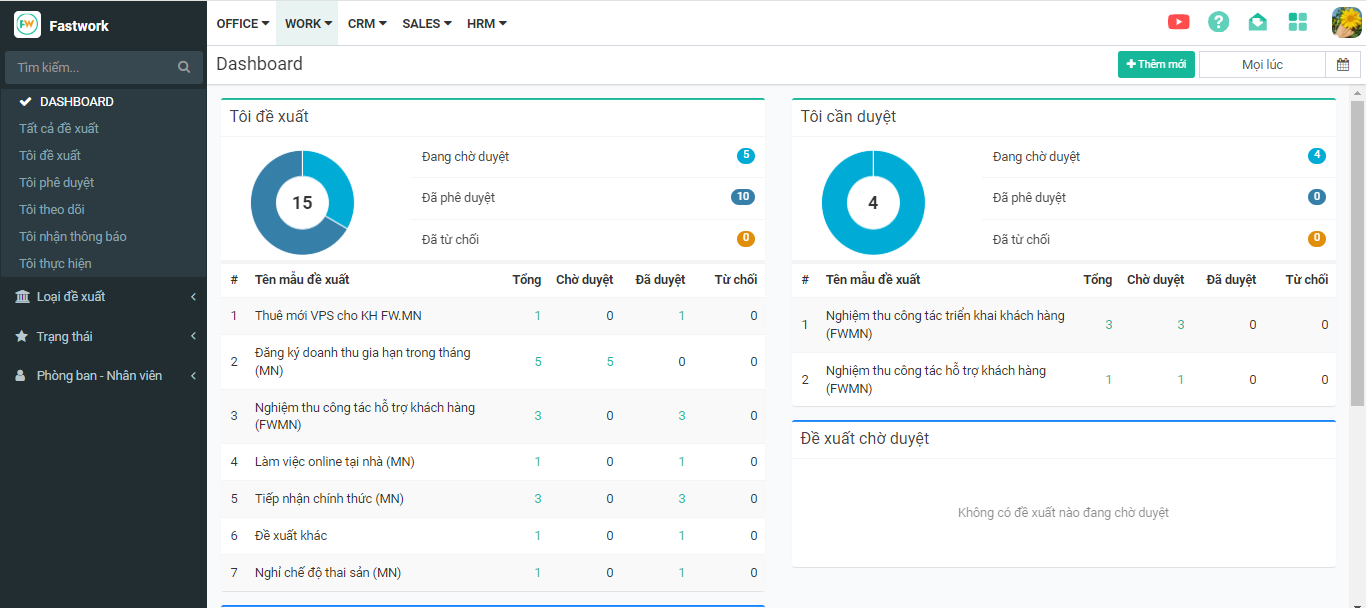
**Bước 1:** Từ menu **WORK** -> chọn **Đề xuất và phê duyệt nội bộ.**
**Bước 2:** Từ giao diện chọn **DASHBOARD** -> Hiển thị chi tiết các mẫu đề xuất (chọn bộ lọc thời gian để xem trong khoảng thời gian mong muốn)
{% hint style="info" %}
Các bộ lọc:
* **Tất cả đề xuất**
* **Tôi đề xuất:** Đề xuất mình gửi
* **Tôi phê duyệt**: Đề xuất mình duyệt
* **Tôi theo dõi:** Đề xuất tôi theo dõi
* **Tôi nhận thông báo:** Đề xuất tôi nhận thông báo
* **Tôi thực hiện:** Đề xuất tôi thực hiện
{% endhint %}
* **Loại đề xuất:** Lọc theo các loại đề xuất đã tạo
* **Trạng thái:** Lọc theo các trạng thái
* **Lọc theo thời gian:** Chọn bộ lọc theo thời gian và nhấn **Áp dụng**
* **Phòng ban/Nhân viên:** Lọc đề xuất theo phòng ban/nhân viên cần xem
## 2. Hướng dẫn cách theo dõi, quản lý đề xuất trên Mobile
* **Cấp Quản lý**
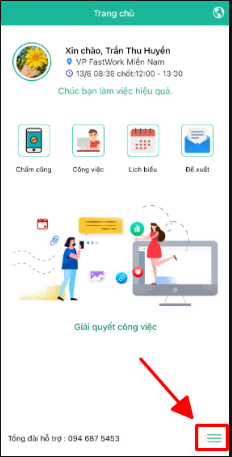
**Bước 1:** Tại giao diện chọn 3 gạch ngang ở góc dước bên phải
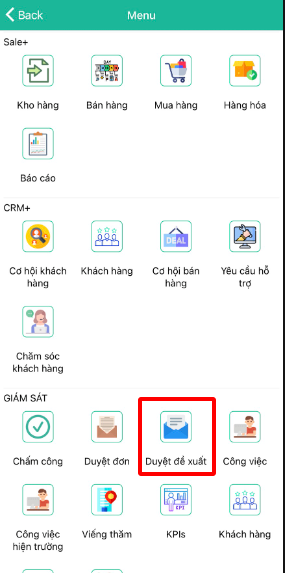
**Bước 2:** Ở phần **Giám sát** -> Chọn **Duyệt đề xuất**
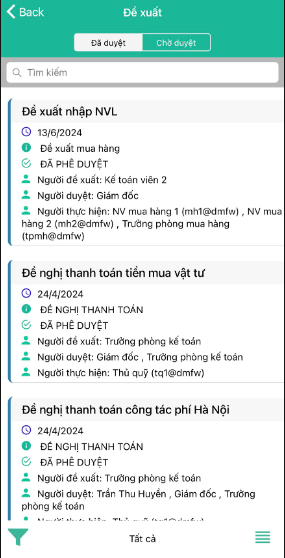
**Bước 3:** Lọc được các đề xuất đã duyệt hoặc chờ duyệt
* **Cấp nhân viên:**
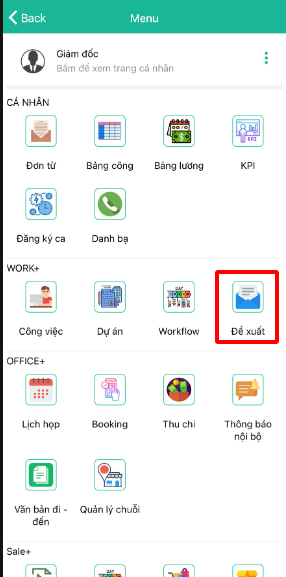
**Bước 1:** Từ giao diện chính chọn ba gạch góc ngang ở góc dưới bên phải
**Bước 2:** Chọn mục **Đề xuất**
**Bước 3:** Tại đây có thể lọc được theo các đề xuất **Đã duyệt, Chờ duyệt** và **bản thảo**
* **Lọc hình phễu:** Lọc theo loại đề xuất
* **Dấu 4 gạch ngang:** Lọc theo thời gian