> For the complete documentation index, see [llms.txt](https://help.fastwork.vn/fastwork-help-center/llms.txt). Markdown versions of documentation pages are available by appending `.md` to page URLs; this page is available as [Markdown](https://help.fastwork.vn/fastwork-help-center/huong-dan-s-dung-chi-tiet/fastwork-office/fastwork-expense/thao-tac-quan-tri/cach-cau-hinh-mau-in-cho-tung-loai-phieu-thu-phieu-chi.md).
# Cách cấu hình mẫu in cho từng loại phiếu thu, phiếu chi
**Bước 1:** Từ Menu **OFFICE** chọn **Quản trị phân hệ OFFICE+**
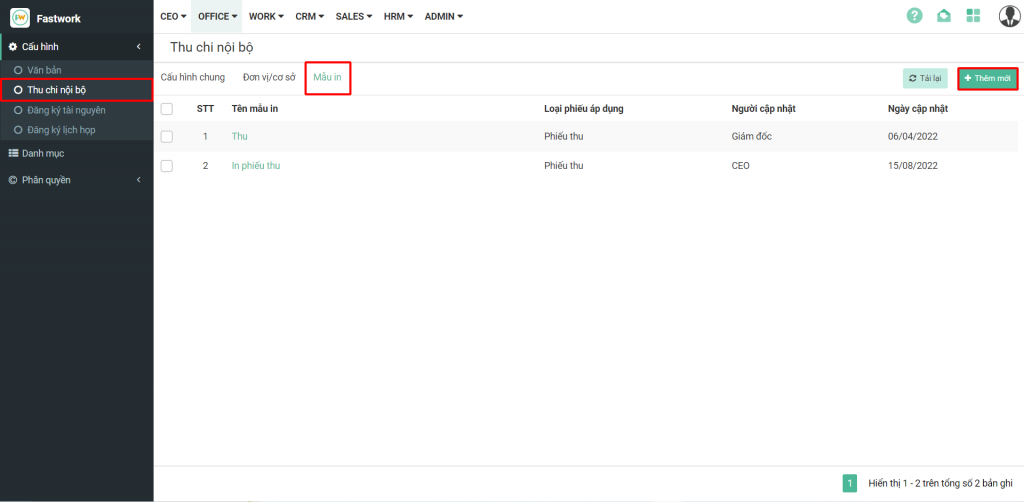
**Bước 2:** Chọn **Thu chi nội bộ** =>> Chọn tab **Mẫu in** =>> chọn **Thêm mới**
**Bước 3:** Tự thiết kế theo mẫu bên mình
* Ở mỗi vị trí cần Lấy trường tự động, trỏ chuột vào vị trí đó
* Chọn trường dữ liệu muốn điền tự động
* Bấm Ô **Đưa vào**
Sau khi thiết kế xong >> Bấm **Lưu**
\[Tên mẫu in]: Tên mẫu in mà mình muốn đặt\[Loại phiếu áp dụng]: Mẫu in này áp dụng cho loại phiếu thu hay phiếu chi\[Chọn trường dữ liệu]: Là những trường mà phần mềm có thể tự động lấy dữ liệu được